 | Knowledge Centre FAQS NEW
Document Storage — New Feature
Here are some FAQ's
? 5 min read 9 questions answered
Document Storage is a new Trade Shield feature (currently in free trial until 29 August 2026) that lets you attach supporting documents directly to a customer's account so everything you have collected lives together in one place. This article answers the most common questions about how it works, what you can upload, and what to expect from the trial.
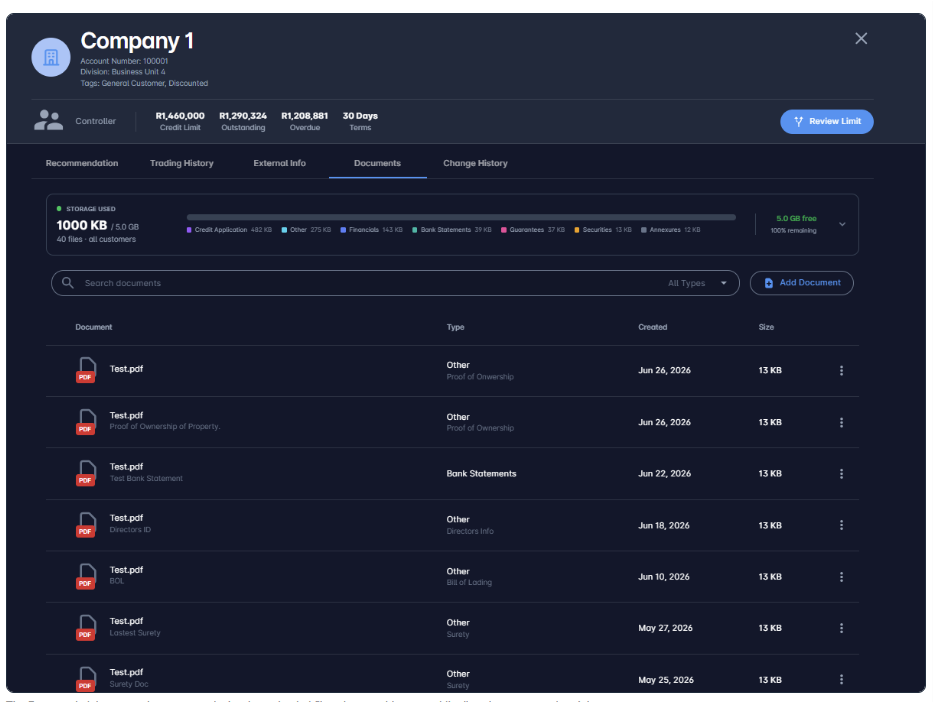
The Documents tab on a customer account, showing uploaded files, document types, and the live storage usage breakdown.
In this article
Q1: What is the Document Storage feature?
Document Storage lets you attach files directly to a customer's account inside Trade Shield, so everything you have already collected for that customer lives in one place. Instead of tracking credit applications, financials, ID copies, bank statements, and guarantees across email, shared drives, or filing cabinets, you can upload them once and access them from the customer's Documents tab at any time.
The feature is currently in a free trial running until 29 August 2026. Your uploads and storage allocation are live and usable right now.
ⓘ Note: The full credit application PDF generated when onboarding a new customer will automatically be saved to Document Storage, so it is ready to access from day one without any manual upload required.
Q2: Is Document Storage a document management system?
No. Document Storage is a secure storage space attached to each customer account, not a document management system. There are a few important things to understand about what the feature does and does not do:
- Trade Shield does not assess or review the documents you upload. We do not verify, analyse, or act on the content of any file stored here. Document assessment happens through the platform's credit workflow, not through uploaded files.
- There is no version control or duplicate detection. If you upload a newer version of a document that already exists, both files will sit alongside each other in the list. The system does not flag that a newer version has been added or that the same document was uploaded twice.
- Documents are not linked to workflows or applications. Uploading a file here does not attach it to a credit application, approval process, or any workflow. It is a reference store only.
ⓘ Tip: Because the system does not detect duplicates or versions, use the Description field and document type categories to keep your uploads organised. For example, label a document "Financials FY2025 — Updated June 2026" so it is easy to identify alongside earlier uploads.
Q3: How do I upload a document to a customer's account?
Open the customer's account, navigate to the Documents tab, and click Add Document. A modal will appear where you can drag and drop your file or browse for it, then choose a document type and add an optional description before uploading.
UPLOAD DOCUMENT MODAL
Upload Document
Drag & drop a file or browse, then fill in the details before uploading.
? Drag & drop a file here, or click to browse
PDF, Word, Excel, JPG, PNG • Max 25 MB
Document Type *
Description
What to do:
- Open the customer record and click the Documents tab.
- Click Add Document in the top-right corner.
- Drag and drop your file into the upload area, or click to browse your device.
- Select a Document Type from the dropdown (required).
- Add an optional description to help identify the file later.
- Click Upload. The file will appear immediately in the document list.
Q4: What file types and sizes are supported?
You can upload PDF, Word (.doc/.docx), Excel (.xls/.xlsx), JPG, and PNG files. Each file can be up to 25 MB in size.
ⓘ Tip: If you have a large scanned document that exceeds 25 MB, compress or split the PDF before uploading. Most free online tools can reduce a PDF to under 10 MB without visible quality loss.
Q5: What document categories are available when I upload?
When uploading, you select a Document Type to categorise the file. These map to the key document types you would typically collect for a customer's credit file:
- Credit Application — signed credit application forms
- Financials — management accounts, audited financial statements
- Bank Statements — recent bank statements used in assessments
- Guarantees — personal or corporate surety and guarantee documents
- Securities — cession of debtors, asset securities
- Annexures — supplementary documents attached to agreements
- Other — anything that does not fit the above, such as director IDs, proof of ownership, or bills of lading. Use the Description field to add context.
ⓘ Tip: Always use the Description field when selecting Other — it makes it much easier to find the document when reviewing a customer's file later.
Q6: Is document storage per customer, or shared across all customers?
Documents are uploaded and viewed at the individual customer level — each file you upload is attached to the specific customer account you had open at the time. Your total storage usage is tracked across all customers combined (visible in the Documents tab), but each file belongs to the customer it was uploaded under and is only accessible from that customer's profile.
Q7: How much storage do I get during the trial?
During the trial you have 5.0 GB of shared storage across all customer accounts. The Documents tab shows a live breakdown of usage by document type, the total file count, and how much space remains.
Storage usage breakdown

The Documents tab shows a live breakdown of your storage usage by document type, total file count, and remaining space.
ⓘ Tip: If you anticipate needing more than 5 GB, reach out to your account manager before the trial closes to discuss storage options.
Q8: What happens to my documents when the trial ends on 29 August 2026?
If you choose not to continue with Document Storage after the trial, access to the feature will be suspended. Your files will not be immediately deleted — Trade Shield will retain uploaded documents for a period following trial close to allow retrieval if needed. However, you will not be able to add new documents or view them from the platform until an active plan is in place.
⚠ Note: To avoid any disruption to access, contact your account manager or support@tradeshield.ai before 29 August to confirm your plan.
Q9: How do I keep Document Storage after the trial?
Get in touch with your Trade Shield account manager or contact the support team before the trial closes on 29 August 2026. They will walk you through the available options and ensure there is no interruption to your access.
What to do:
- Email support@tradeshield.ai and mention you want to retain Document Storage.
- Alternatively, speak directly to your account manager.
- Your team will confirm the plan details and activate ongoing access before 29 August.
Need more help?
The support team is ready to assist