How To Approve an Application at the Final Approval Stage
Summary
This guide explains how to approve an application that has reached the Final Approval stage in the Trade Shield platform. It is intended for assigned approvers and admin users who are responsible for reviewing and completing final application decisions.
Prerequisites
Before you begin, ensure that:
- You have an active Trade Shield user account.
- You are logged in with a role assigned to the Final Approval level.
- The application has progressed to the Final Approval stage in the workflow.
- You have permission to view and approve applications for the selected company.
Steps
1. Log in to Trade Shield
Log in to the Trade Shield platform using your assigned credentials.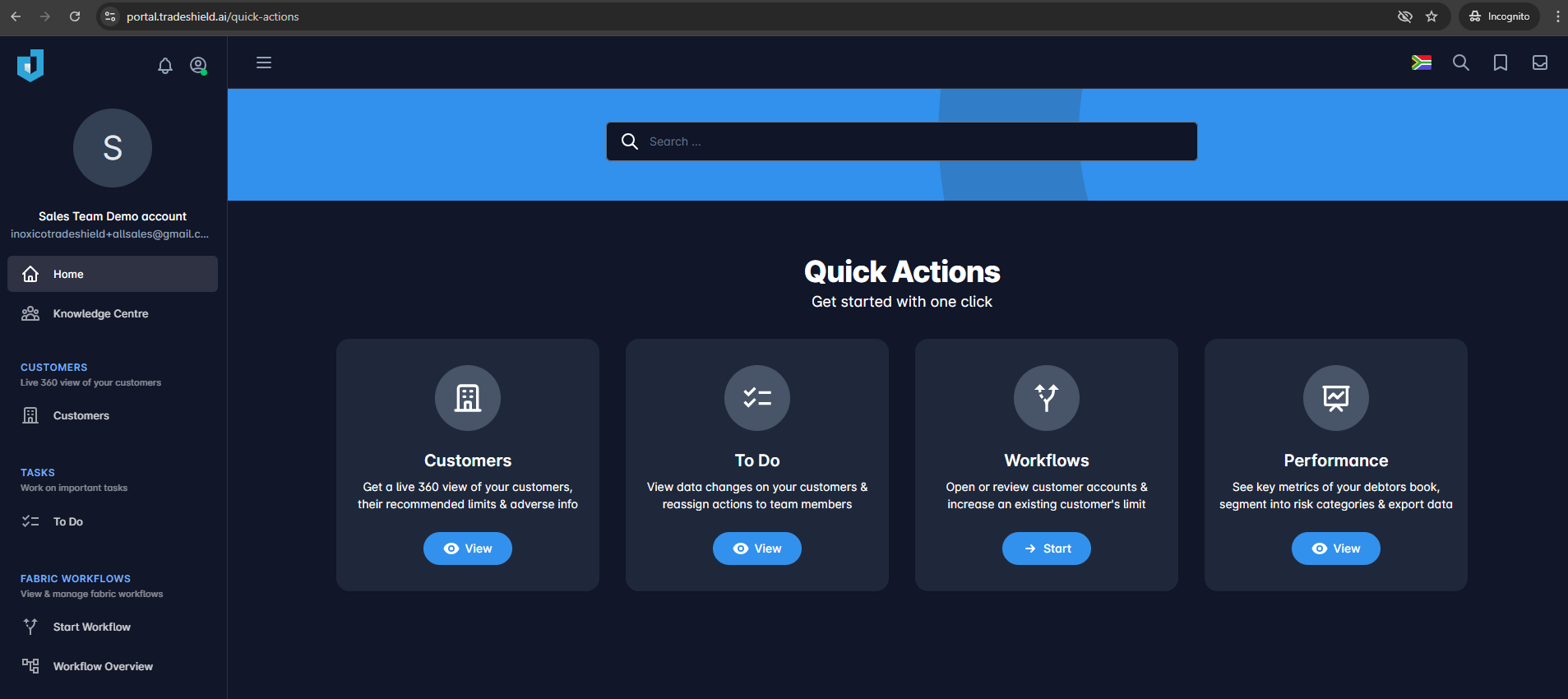
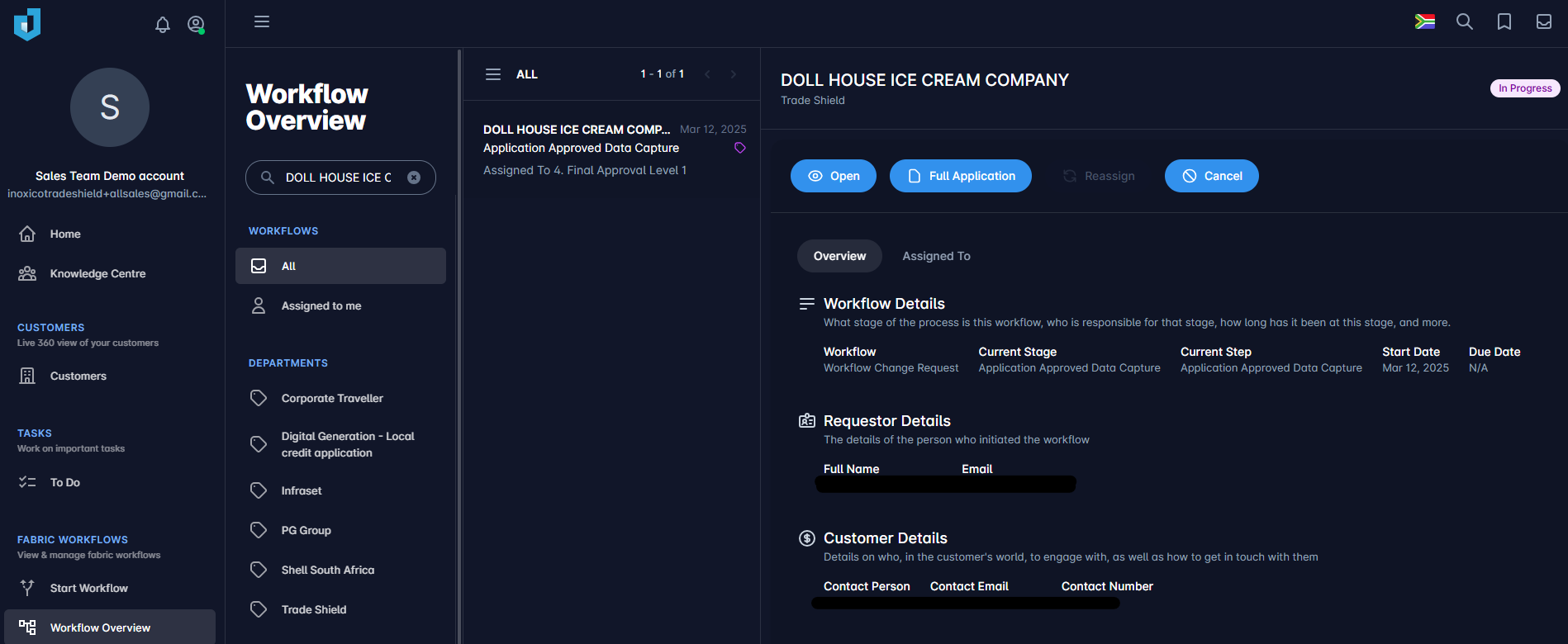
2. Open Workflow Overview
From the left navigation panel, select Workflow Overview.
Search for the relevant company whose application requires final approval.
Note: If you are not the assigned approver for this approval level, an error message will appear when attempting to open the application.
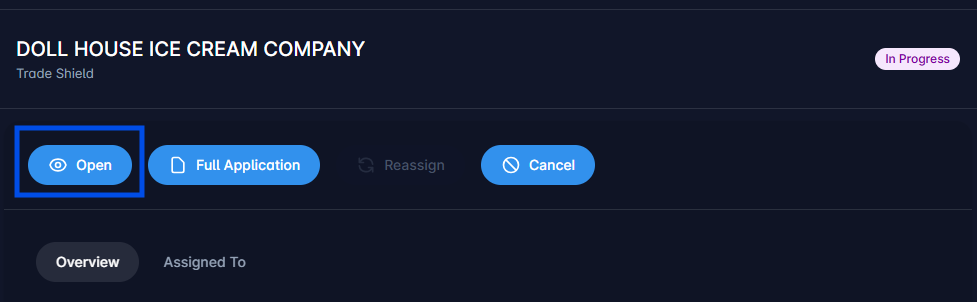
3. Open the Application
Select the correct application and click Open to view the application details.
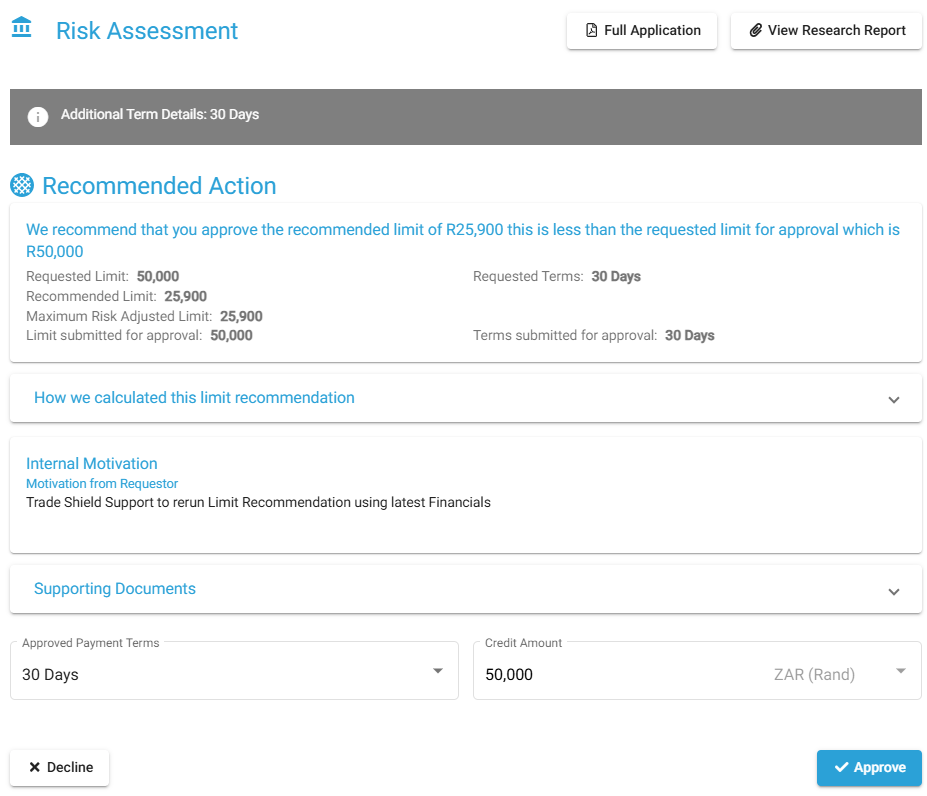
4. Review the Application Details
Carefully review all available information, including:
- Submitted company information
- Attached supporting documents
- Credit report and risk assessment
- Recommended action and proposed limits
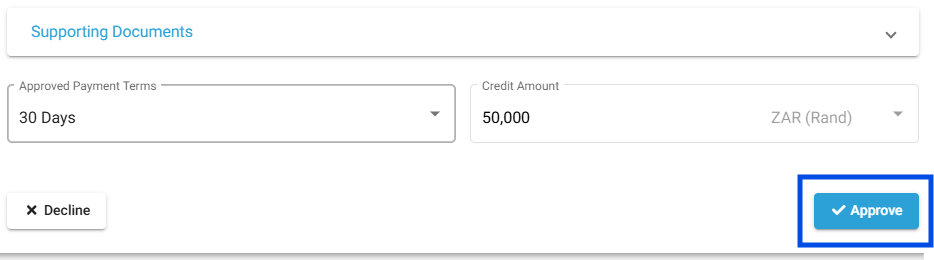
5. Select Approve at the Bottom of the Page
Scroll to the bottom of the Overview page.
If required, complete any additional fields such as:
- Document uploads
- Insurance requirements
- Company-specific conditions
Click Approve to proceed.
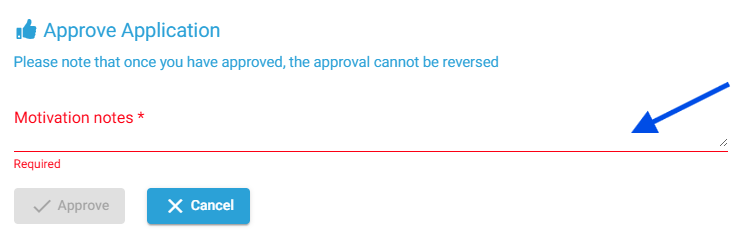
6. Enter Motivation Notes
When prompted, enter Motivation Notes explaining the reason for approval. This information is mandatory and will be recorded on the final application.
Examples include:
- Assessment outcomes
- Risk considerations
- Additional comments supporting the approval decision
7. Confirm Application Completion
Once approved, the application is either:
- Marked as Complete, or
- Moved to the next approval level, depending on the workflow configuration.
A confirmation message indicates that the approval has been successfully processed.
Was this article helpful?
That’s Great!
Thank you for your feedback
Sorry! We couldn't be helpful
Thank you for your feedback
Feedback sent
We appreciate your effort and will try to fix the article